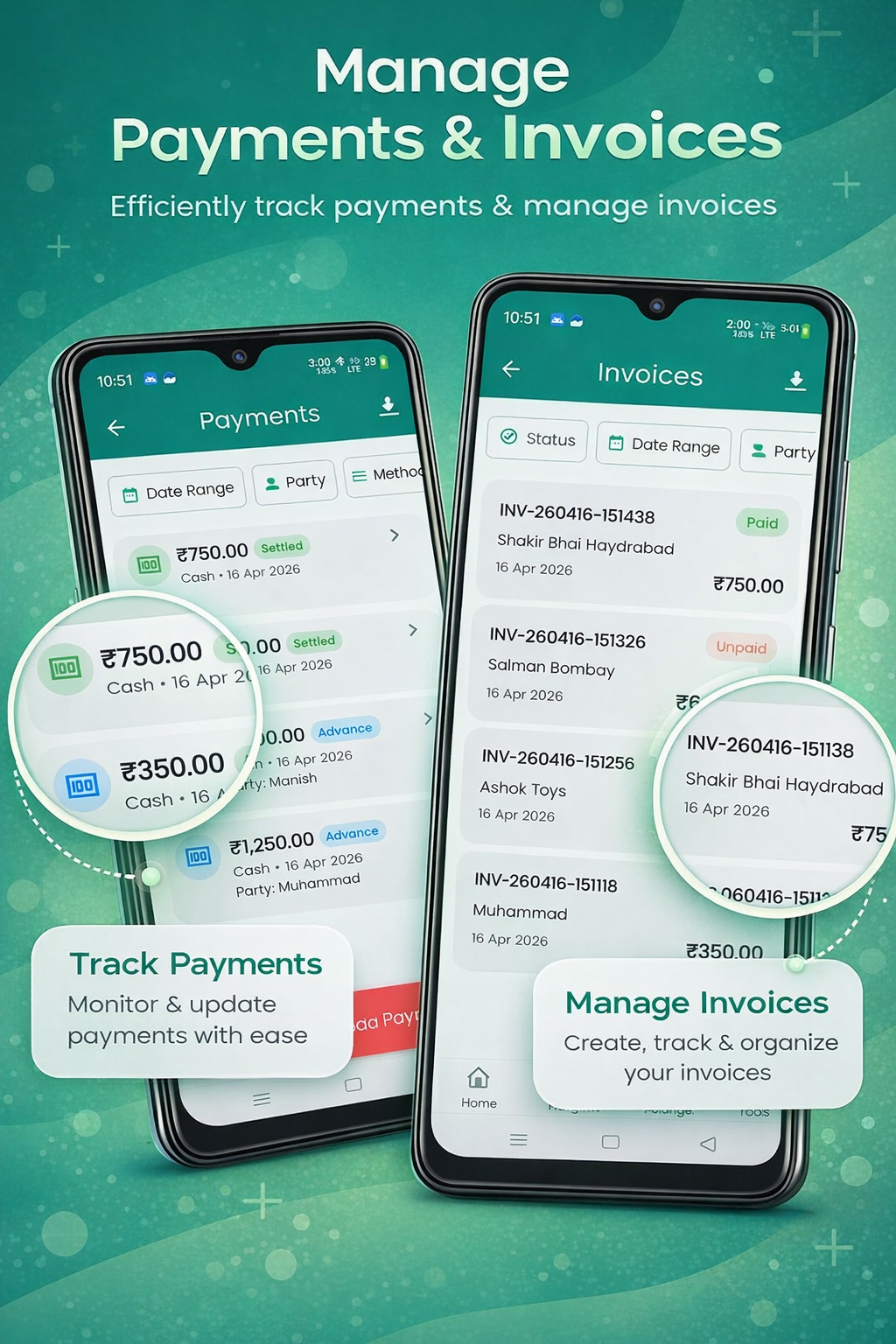
Create a new invoice
From the Invoices tab, tap the floating + button. Or use the Quick add button on the dashboard.
Auto-generated invoice number
The next number is filled for you using the prefix and format from Invoice Settings → Numbering. You can edit it inline.
Pick the customer (party) — or skip for walk-in v3
Search existing parties, tap “+ New” to create one with GSTIN/address/phone/email, or just leave the picker empty for a counter walk-in. An optional name & phone field appears for the receipt.
Set invoice date & due date
Both default to today; due date drives the overdue alert on your dashboard.
Walk-in / counter sales v3
Most counter customers don't need a permanent record. Shahi Expense handles them in under three taps.
- Leave the party picker empty — the invoice saves with the label "Walk-in Customer"
- Tick "Customer paid in cash now" to mark it Paid in one step (default for new walk-ins)
- A "Walk-in" badge appears on the invoice card so you can tell counter sales apart
- The Invoices list has a filter chip: All / Linked party / Walk-in only
- Counter regulars? Open a walk-in invoice → menu → Save as customer. The app links this invoice and back-fills every past walk-in with the same phone
- For invoices ≥ ₹50,000 you'll see a soft GST B2CL reminder to add the buyer's name and address
Voice entry for items v3
Tap the microphone icon next to the Items section and speak. The app turns your sentence into a line row.
- Try: "5 sugar at 50 rupees", "10 packets rice 80 rupees", "2 milk one liter 60 rupees"
- Hindi: "5 चावल 80 रुपये" · Gujarati: "10 ખાંડ 50 રૂપિયા" · Urdu: "5 چائے 100 روپے"
- The transcript is fuzzy-matched against your stock catalogue — if "sugar" exists, the app fills the saved name, HSN code and selling price
- Stock auto-deducts on voice-added items, exactly like manually-picked rows
- Listens for up to 20 seconds with one quiet auto-retry on silence; falls back to English if your selected language returns nothing
- Free, no account, no API keys — uses Google's on-device speech engine on Android and Apple's on iOS
Add line items
You can mix stock items and manual entries in the same invoice.
- Tap Add item → search stock, or type a custom item name
- Quantity & unit price auto-fill from your stock catalogue
- Per-item discount in % or ₹
- HSN/SAC code auto-fills from the item record
Tax & HSN setup
Shahi Expense supports the full Indian tax stack:
GST (intra-state)
Auto-splits to CGST + SGST in equal halves.
IGST (inter-state)
Used when customer state differs from yours.
Cess
Add a fixed % cess on top of GST when applicable.
HSN / SAC codes
Stored per item — printed on every invoice automatically.
Totals & discounts
- Subtotal — sum of line items before tax
- Invoice-level discount — additional flat or % discount on top
- Tax breakdown — automatic per-rate split
- Round-off — toggle in Invoice Settings if you want clean rupee totals
- Grand total — final amount payable
Due date & reminders v3
The orange "Due" pill near the top of the form lets you set when payment is expected. The app then schedules local notifications so neither you nor your customer forgets.
- Defaults to invoice date + 7 days (Net 7) — change or clear with a tap
- Reminders fire 3 days before the due date, on the due date, and 1 day after
- Reminders survive reboot and don't need any cloud — works fully offline
- Master toggle and notification time controls in Settings → Reminders
- Tapping a reminder opens the invoice; from there one tap sends a WhatsApp follow-up
Generate the PDF, share & print
Once you save, the invoice opens in preview. From here you can:
- Share — opens the system share sheet (WhatsApp, Email, Drive, anything)
- Save PDF — exports to your phone storage
- Print — sends to a connected Bluetooth/USB printer
- Tap-to-pay UPI v3 — every PDF carries a tappable "Pay via UPI" pill below the QR. Customer taps inside WhatsApp / Adobe / Google PDF viewer and GPay or PhonePe opens with the amount, payee and invoice reference pre-filled. Add your VPA in Settings → Invoice Settings → UPI to enable this.
Send WhatsApp reminders v3
Every unpaid or partial invoice card now shows a Remind button next to its Overdue Nd badge — provided the party (or the walk-in entry) has a phone number on file.
- The reminder message is pre-filled in the user's selected language: English, Hindi, Gujarati or Urdu
- Days overdue, balance and due date are auto-populated
- If you've configured a UPI VPA, a tap-to-pay link is included in the message body
- For a roll-up view, open the dashboard Outstanding tile → drills into Overdue Parties sorted by max days overdue, with a one-tap reminder per party
Invoice status & settlement
Each invoice carries one of three live statuses:
- Unpaid — no payment linked yet
- Partially Paid — some payment received
- Paid — fully settled
Read more in the Payments & Settlement chapter.
Templates & branding
Open Settings → Invoice Settings to customise the look:
- Multiple PDF templates (clean, classic, compact)
- Brand color picker
- Toggle: show signature, show QR (UPI), show terms & conditions
- Custom footer text (e.g. “Thank you for your business”)